How to use Read PDF Out Loud
A visual walkthrough of the whole app, from adding your first PDF to listening on your phone. Every screenshot is the real app, reading “Attention Is All You Need”, the 2017 paper that introduced the Transformer.
Before you start
- All you need is a web browser, on a computer, tablet or phone. There's nothing to install.
- To read your own PDFs, sign in with Google or with a link sent to your email. It's free: an account can add up to 500 pages a month, and listening is unlimited.
- Just looking? The sample paper opens without an account.
1Add a PDF
Drag a PDF onto the home page, or press Choose a PDF and pick one from your device.
- Each PDF can have up to 200 pages and be up to 20 MB. Research papers, reports, articles, manuals and books all work, including two-column layouts. Scanned pages are read too, though clean digital PDFs work best.
- The first time, you'll be asked to sign in. Your PDF waits in the browser while you do, and starts reading as soon as you're back.
- The reader opens straight away and shows its progress. Most papers are ready to listen to in a minute or two.
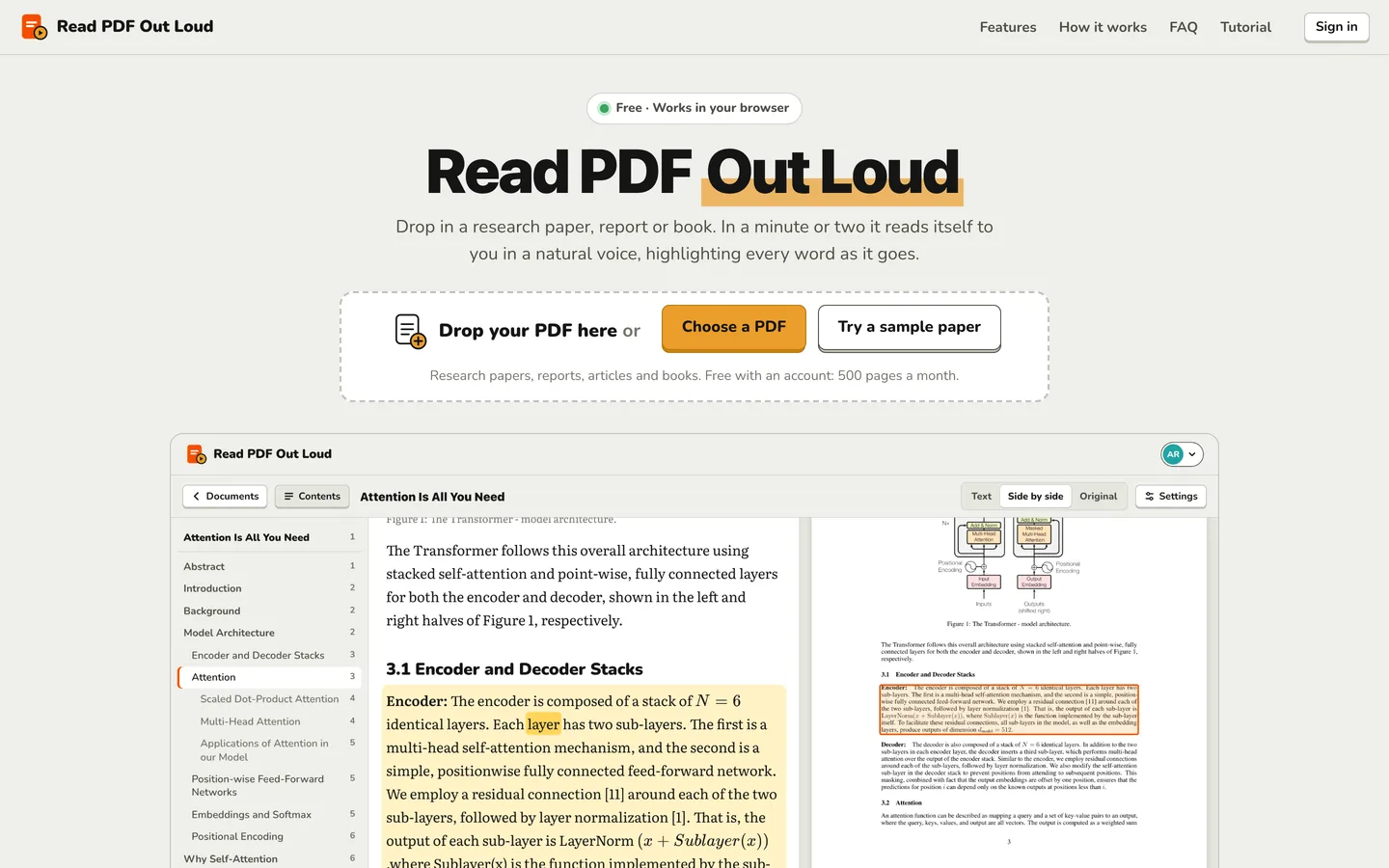
To sign in, press Continue with Google, or type your email address and press Email me a sign-in link. Open the link on the same device to finish signing in. There's no password to remember.
2Your library
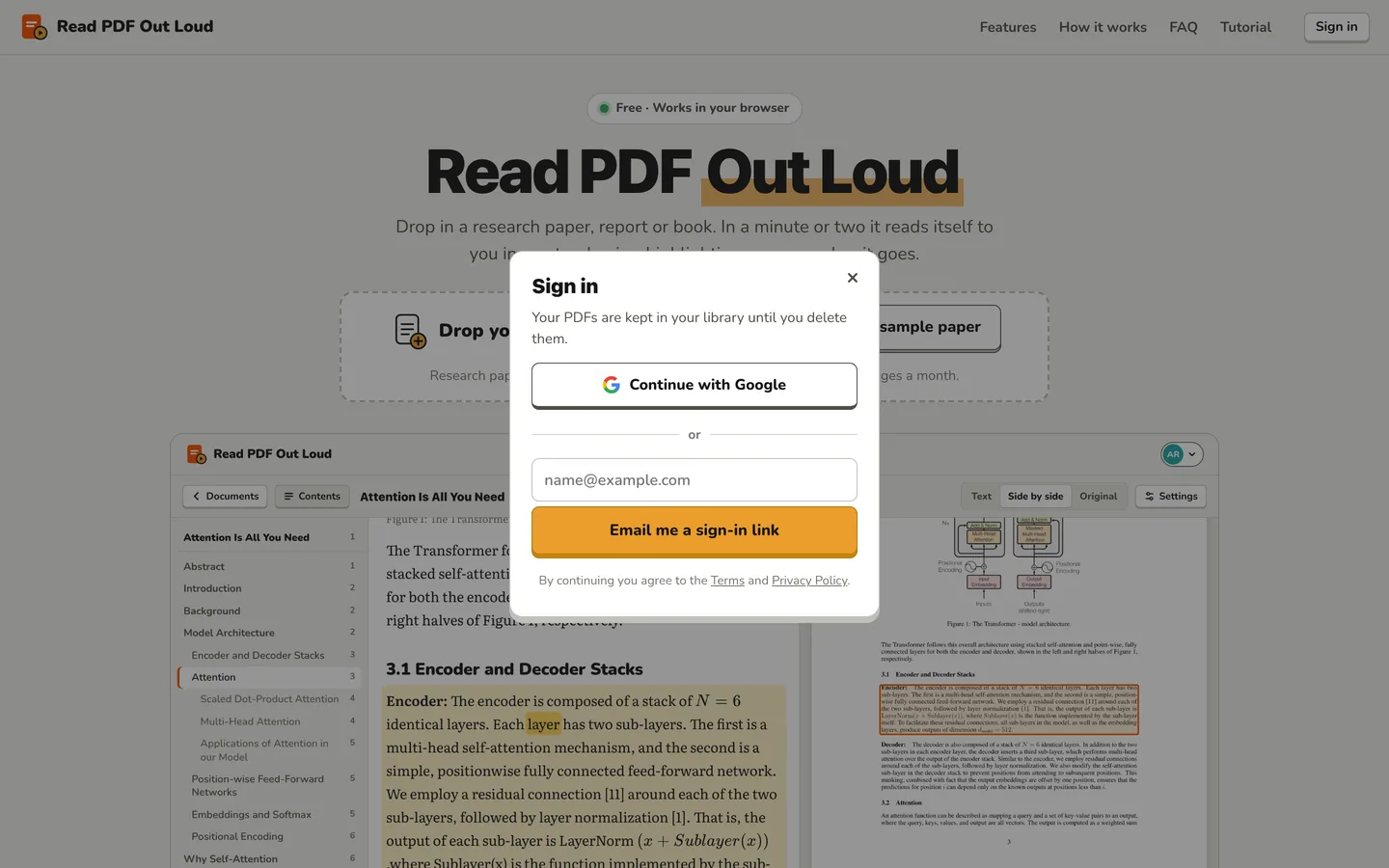
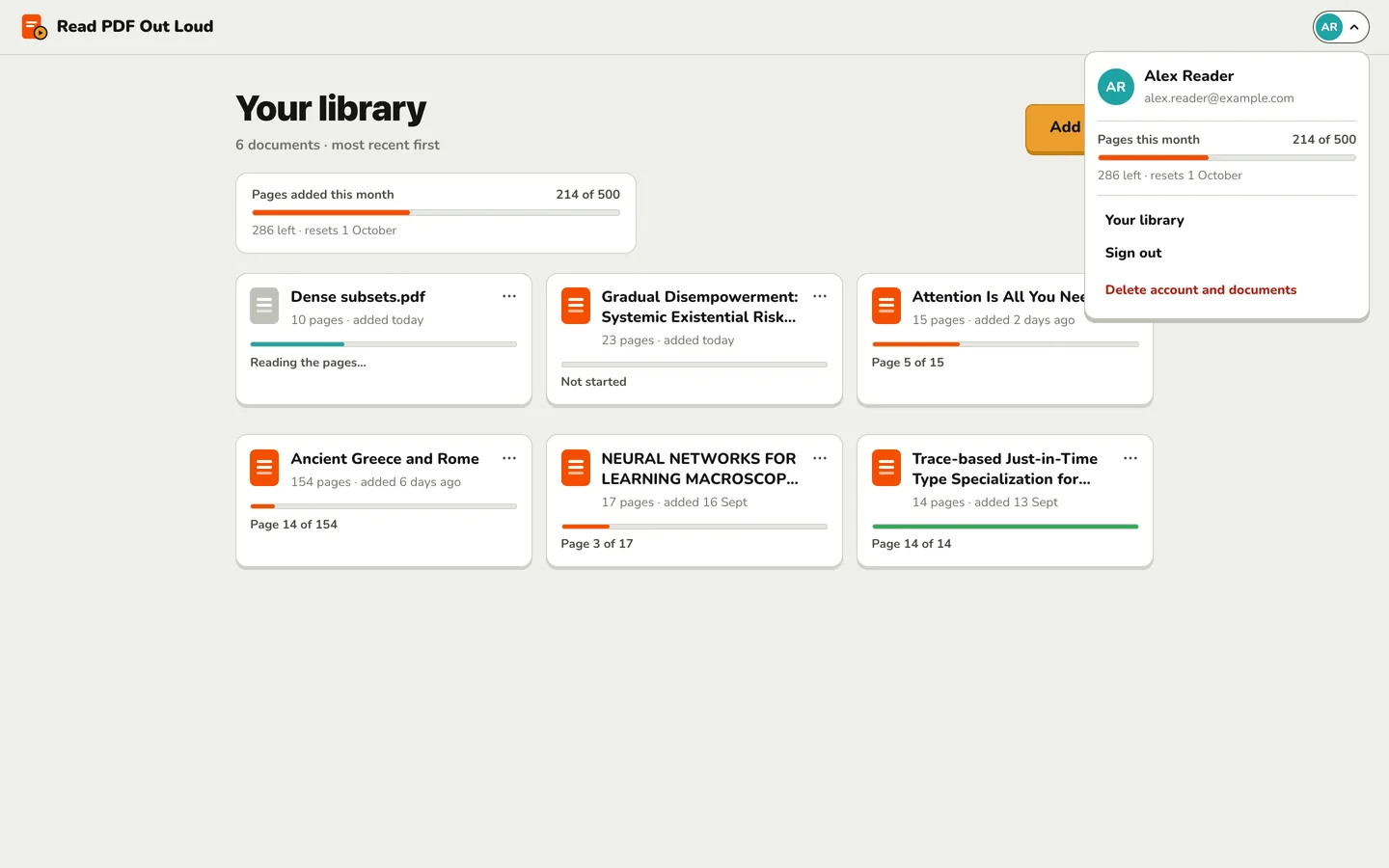
Once you're signed in, the home page is your library: every PDF you've added, most recent first. Documents stay until you delete them.
- Each card shows the document's title, its length, when you added it and how far you've read. Press a card to carry on from where you left off.
- A PDF that's still being read shows how far it has got.
- The ⋯ menu on a card opens, renames or deletes the document, or downloads its text.
- The Pages added this month box shows how many of your 500 pages you've used, and when they reset: on the first day of each month.
- To add another PDF, drop it anywhere on the page or press Add a PDF.
3Listen
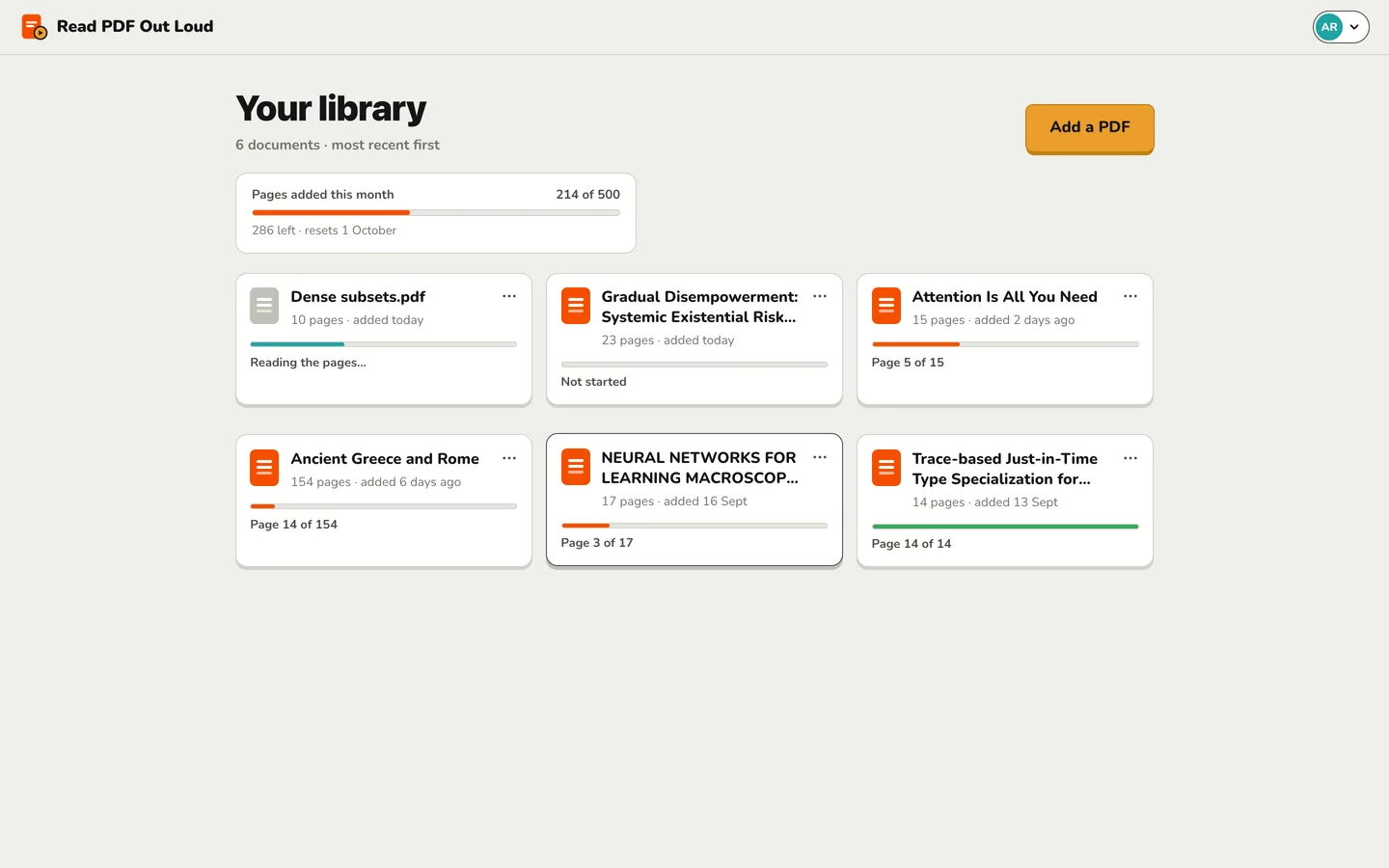
Press the play button, or the Space bar, and the page is read aloud within a second or two. The sentence being read is shaded, and each word lights up as it's spoken, so you can follow along.
- Click any word to start reading from exactly there.
- Go back or forward a sentence with the buttons beside play, or the [ and ] keys.
- Drag along the bar to move through the page, and pick any speed from 0.75× to 2×.
- At the end of a page, the next one turns and reading carries on by itself.
- Equations are read by meaning and highlighted whole, rather than symbol by symbol.
4Follow the original page
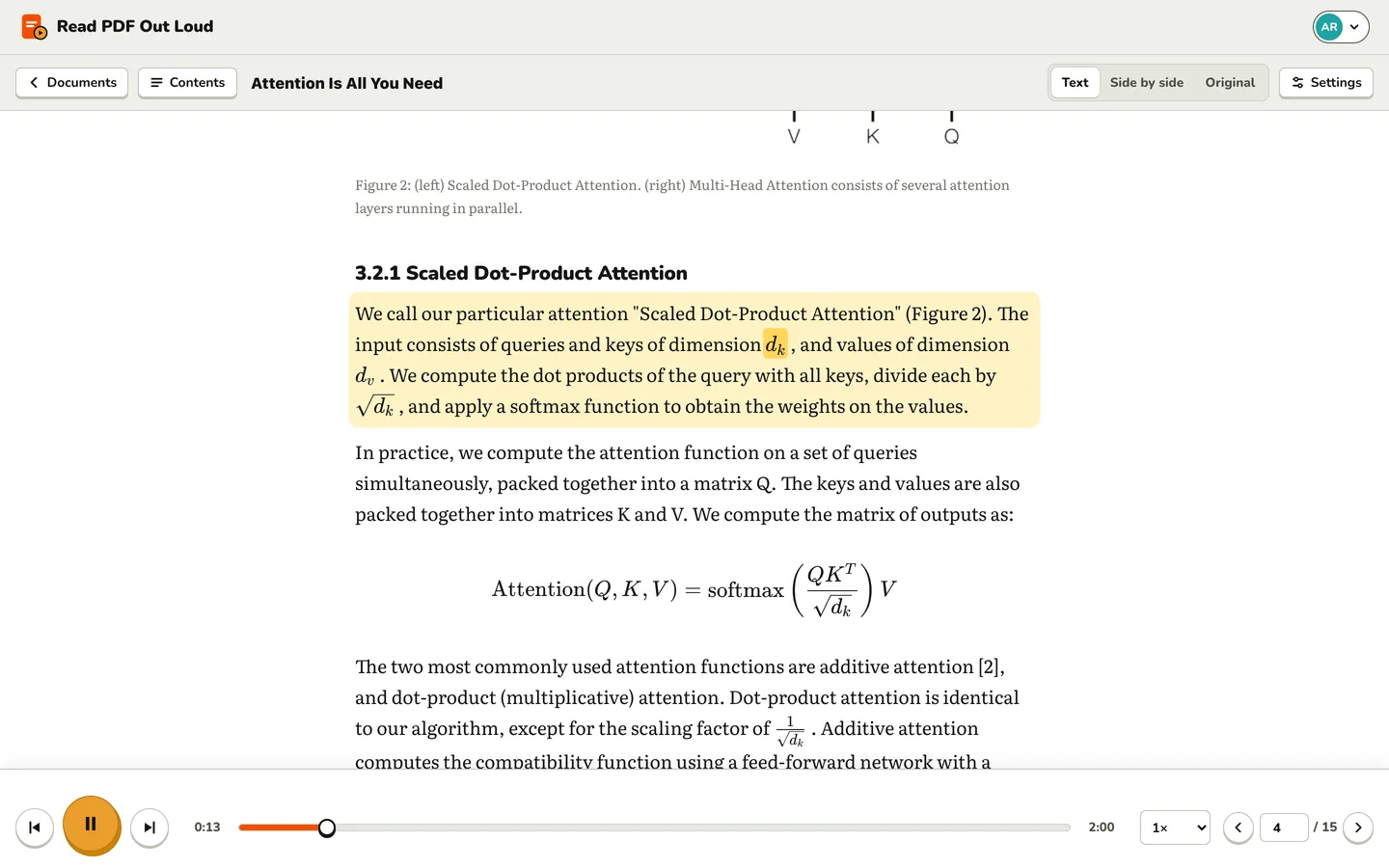
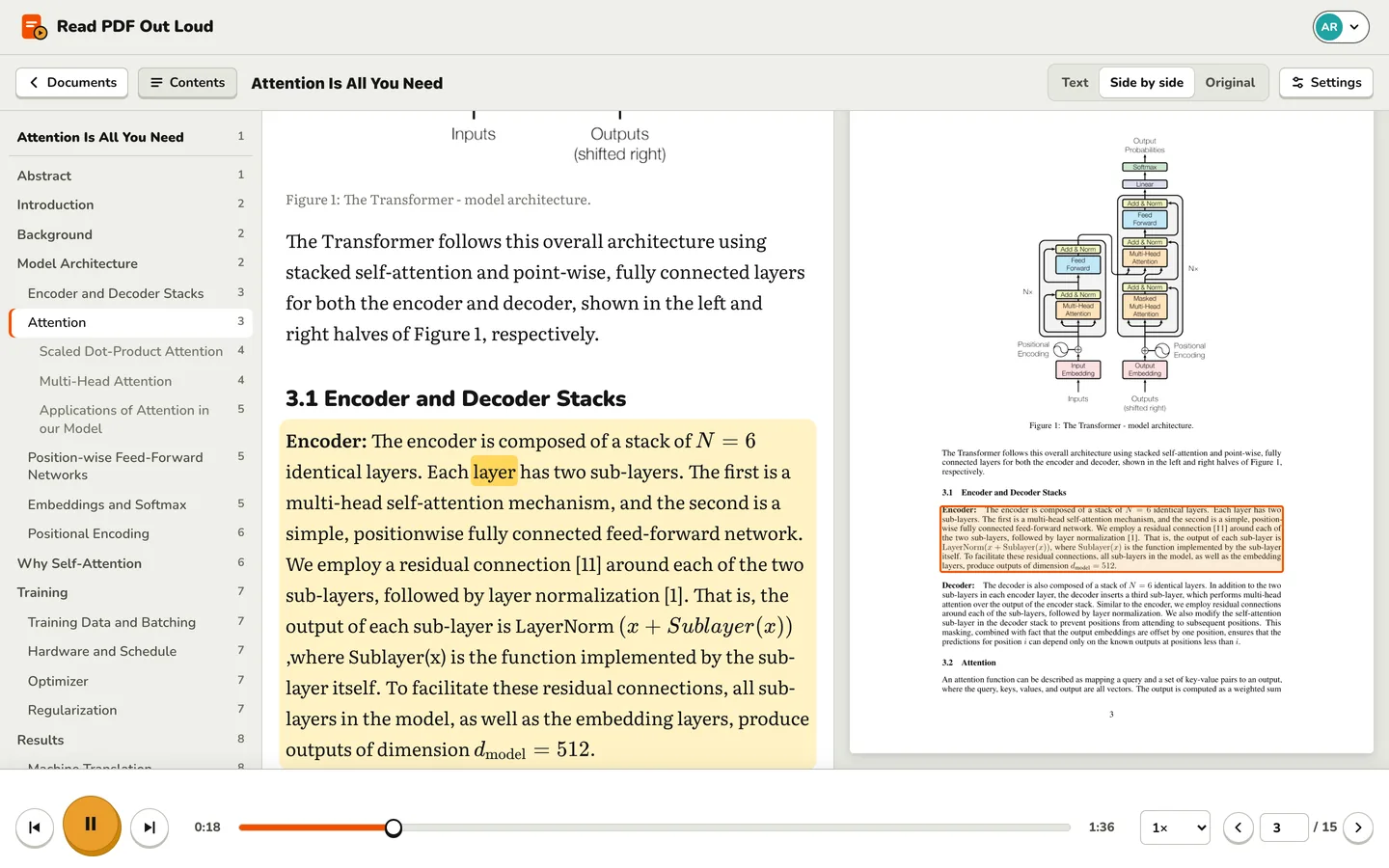
Switch between three views at the top right. Text shows the text alone, set for easy reading. Original shows the PDF page as it was printed. Side by side shows both, and frames the part being read on the original page, so a figure or table is there to look at the moment it's mentioned.
- Press O to switch views from the keyboard. The view you pick is remembered.
- On narrow screens the text shows on its own, and the other views are a tap away.
5Find your way around
The Contents panel on the left lists the document's sections, with the one you're in marked. Press a section to jump to it. Show or hide the panel with the Contents button or the T key.
- Turn pages with the arrows at the bottom right or the ← and → keys, or type a page number.
- Your place in each document is saved with your account, so you can pick up where you left off, even on another device.
| Key | What it does |
|---|---|
| Space | Play or pause |
| [ ] | Previous or next sentence |
| ← → | Previous or next page |
| T | Show or hide the contents |
| O | Switch between Text, Side by side and Original |
6Make it yours
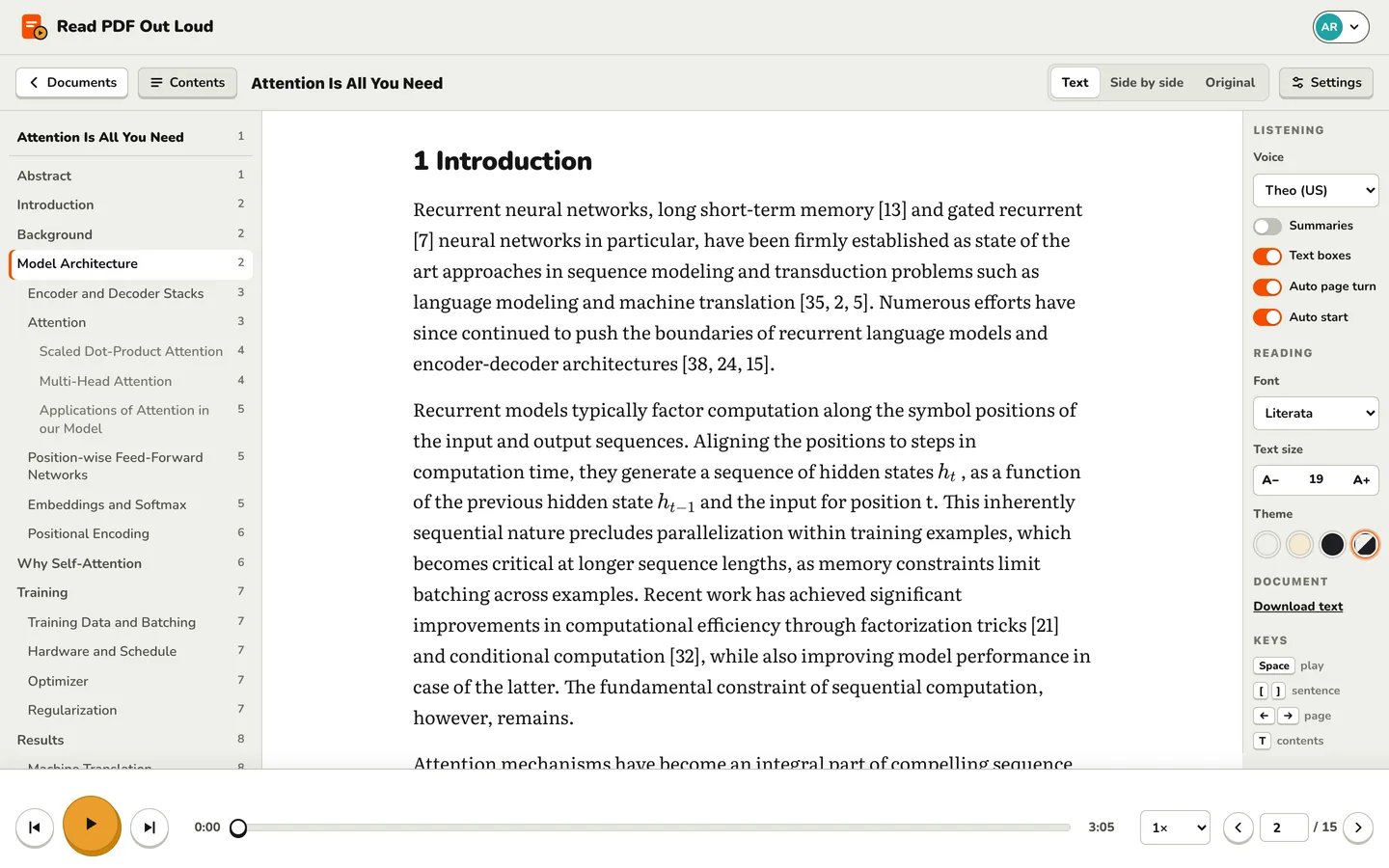
Press Settings at the top right to open the settings panel. Your settings are saved with your account, so they follow you from device to device.
- Voice: four narrators: Theo and Elaine (American), Quentin (British) and Tamsin (New Zealand).
- Summaries: hear a short summary of each figure, table and equation (see below). Off until you turn it on.
- Text boxes: read the boxes set beside the main text, like a textbook's vocabulary or questions, after the paragraph they interrupt. Turn it off to skip them.
- Auto page turn: turn to the next page at the end of each one.
- Auto start: once you're listening, read each new page as soon as it opens.
- Font, text size and theme: choose Literata, a classic serif, a rounded sans or Atkinson Hyperlegible (designed for readers with low vision); make the text larger or smaller; and read in light, sepia or dark, or match your device.
- Download text: save the whole document's text as a plain text file.
7Summaries of figures, tables and equations
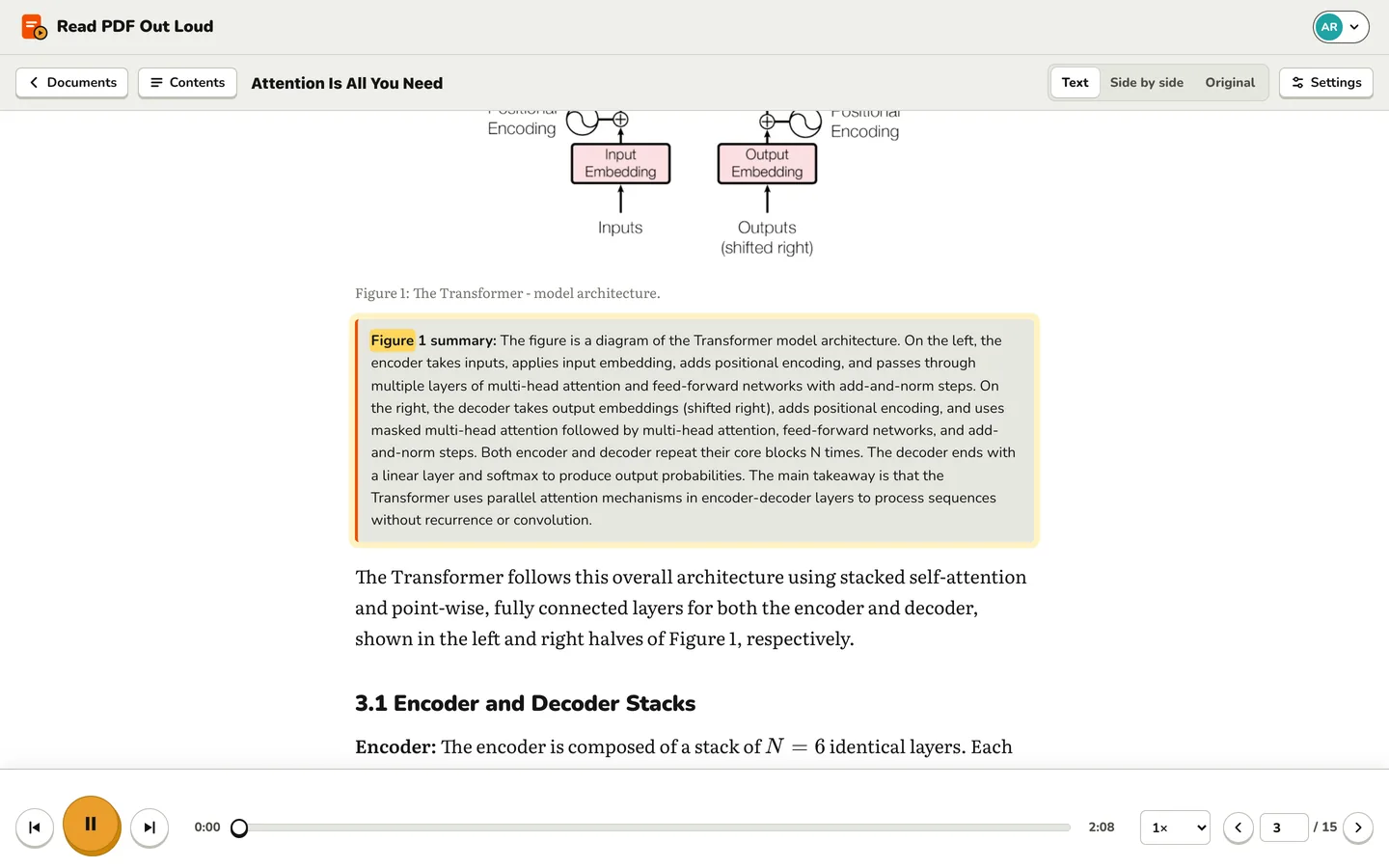
Turn on Summaries in the settings panel, and every figure, chart, table, code listing, algorithm and displayed equation gets a short spoken summary of what it shows. A figure's summary is read just after the text first mentions it.
- The summary opens in a box on the page while it's read, then tucks itself away again.
- Press a figure or a table to hear its summary straight away.
- Summaries are written by an AI model that looks at the figure itself, so treat them as a guide, and check the details on the page.
8How research papers are read
Read PDF Out Loud was built for the hardest PDFs: two-column research papers full of math, tables, figures, code and citations. A layout model looks at every page to tell the text apart from everything around it, so you hear the paper, not the page furniture.
- Columns are read in order, and sentences that run across columns and pages are joined up.
- Equations are read by meaning, like “x squared plus y”, and typeset properly on the page.
- Running headers and footers, page numbers, citation numbers like [12], footnotes and the reference list are left out of the narration.
- Authors' names and the article details on the first pages are shown in grey and not read.
- Headings, captions, tables and code keep their shape in the text view.
- Boxes beside the main text are read after the paragraph they interrupt, under their own heading.
9On your phone
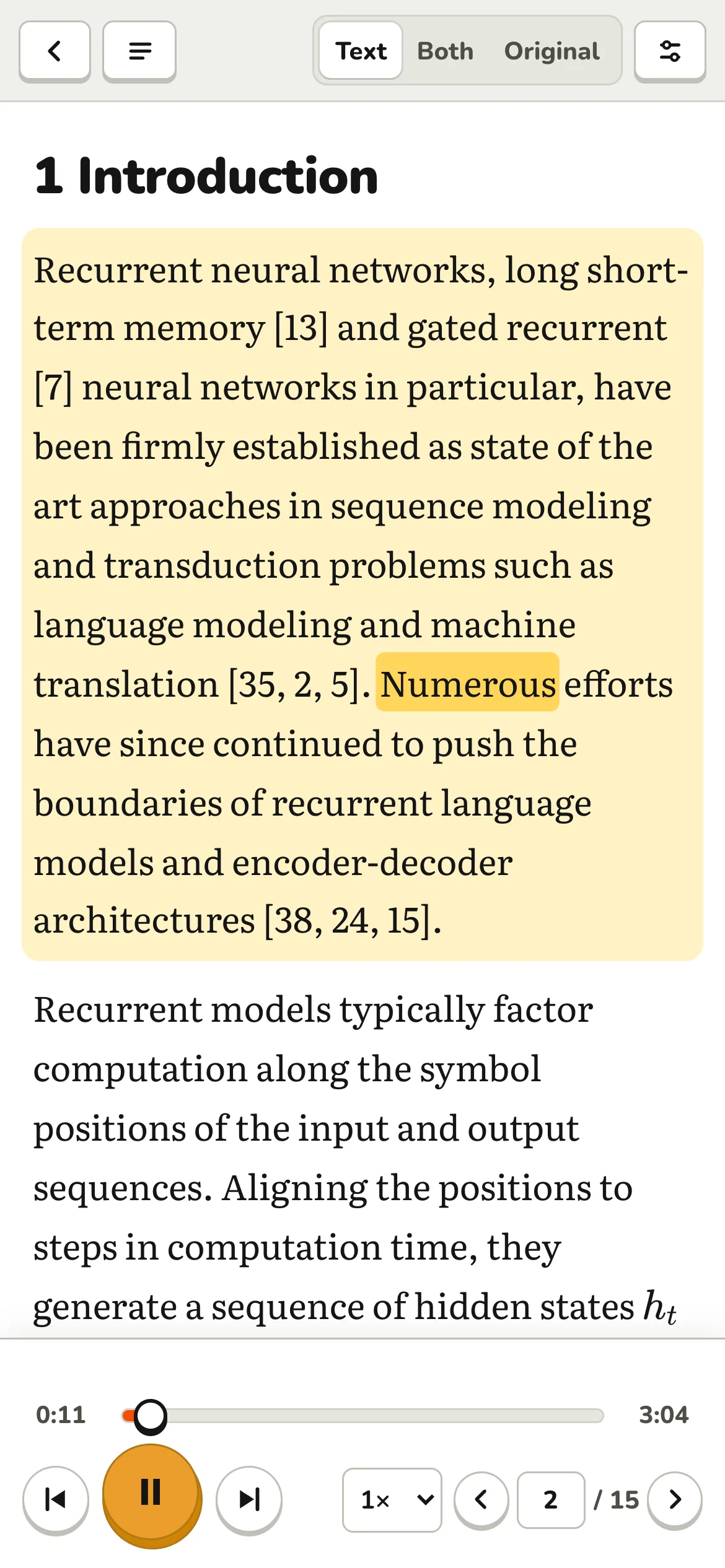
Open readpdfoutloud.com in your phone's browser. Everything works the same way: tap any word to start reading there.
- The buttons along the top go back to your library, open the contents, switch between Text, Both and Original, and open the settings.
- The player sits at the bottom, with the page's timeline above the buttons.
- Add the site to your home screen to open it like an app.
10Your account
Press your picture or initials at the top right for the account menu.
- It shows how many of this month's 500 pages you've added, and when the count resets.
- Pages are counted when a PDF is added. If a PDF can't be read, its pages are given back; deleting a document doesn't give them back.
- Listening is never limited: play your documents as often as you like.
- Only you can see your documents. Delete account and documents removes your account and everything in it.
You're ready to go
Add a PDF and press play, or hear what the reader can do with the sample paper first.
More questions? See the FAQ.